Getting Started › Welcome
Section 01 of 31
Welcome to PureBrain
Your AI Partner Is Ready. It does not reset. It does not forget. It learns your business, remembers your preferences, and gets smarter every day. Here is how to get the most out of your first 30 days.
When your PureBrain instance is provisioned, you receive a unique portal URL. This is your Mission Control — the central hub for chatting with your AI, monitoring its work, managing files, and more.
🌐
Any Browser
Chrome, Firefox, Safari, Edge — your portal works everywhere. No plugins or extensions needed.
📱
Any Device
Desktop, tablet, or phone. The interface adapts to your screen size automatically.
⚡
Nothing to Install
No downloads, no setup wizards. Just open the URL, log in, and start working with your AI.
👁
Permanent Memory
Your AI remembers everything. It does not reset between sessions. What you share becomes the foundation of a continuously improving partnership.
Bookmark your portal URL for quick access. You can also connect via Telegram for mobile notifications and quick instructions (see the Telegram section).
Getting Started › First Login
Section 02 of 31
First Login
Your first login takes about 30 seconds. Here is what to expect.
1
Open your portal URL
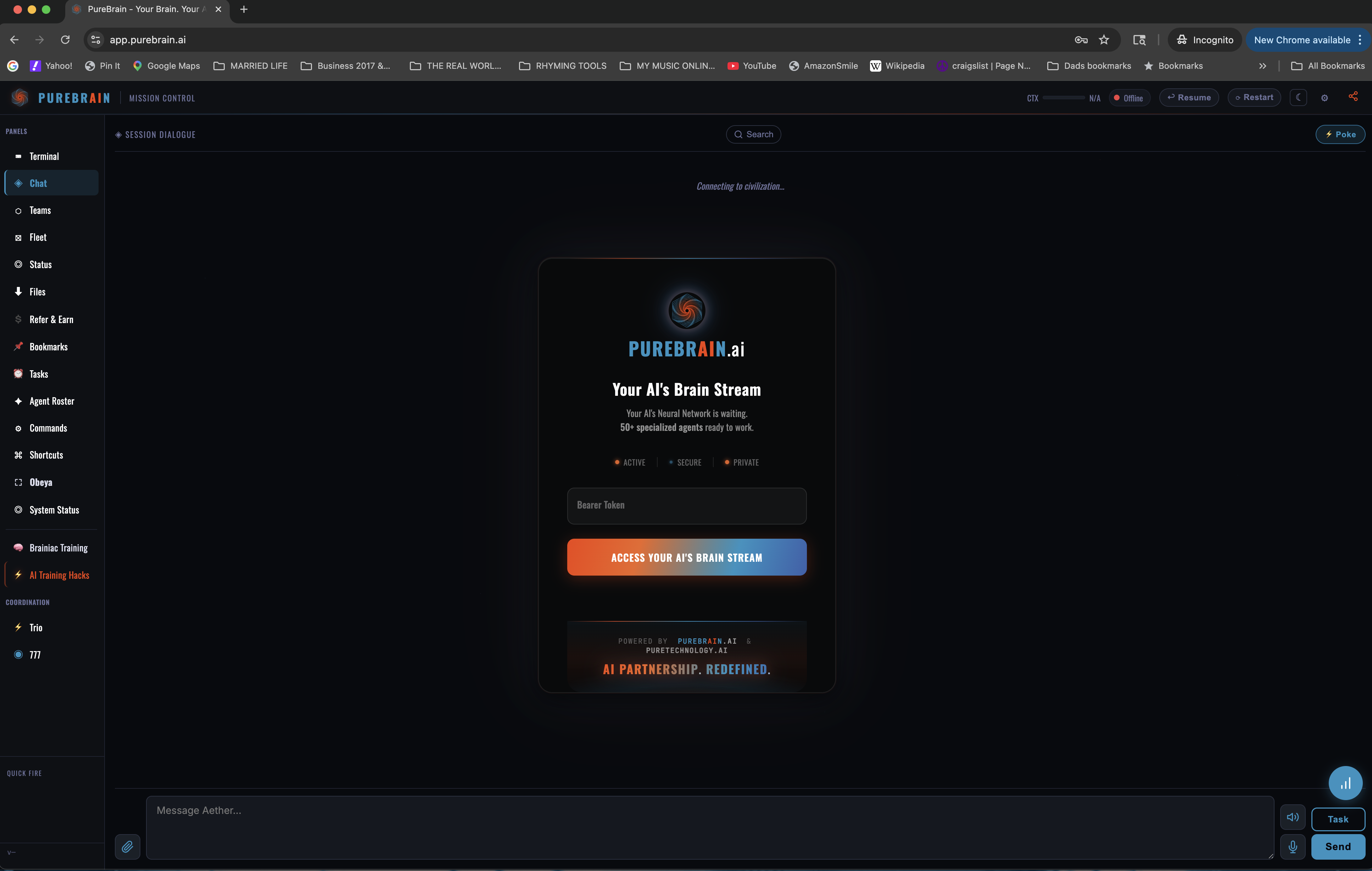
Navigate to the unique URL provided in your magic link email (e.g. yourname.app.purebrain.ai). You will see the PureBrain login screen with the "Your AI's Brain Stream" interface.
2
Enter your Bearer Token
Type or paste the Bearer Token provided in your welcome email. This is your secure access key — a single token, no username or password needed. Just enter it in the token field and click "Access Your AI's Brain Stream".
3
You are in
After authentication, you land directly on Mission Control. Your AI is already running and ready to chat. You'll see the left sidebar with all your portal sections — Chat, Files, Teams, and more.
🔑
About Your Bearer Token
Your Bearer Token is your secure access key to the portal. Keep it safe — it is the only thing needed to access your AI. If you lose it, contact
[email protected] for a reset. We are working on adding username/password login as an alternative, but for now the Bearer Token is your key.
✅
The Awakening
On your first login, your AI will begin the Awakening — a conversation where it learns about you, your role, your goals, and your communication style. This takes about 15–20 minutes and shapes everything that follows.
Getting Started › Before You Begin
Section 03 of 31
Before You Begin
A quick checklist to make the most of your Awakening conversation and first week.
Set aside 15–20 uninterrupted minutes. The Awakening works best when you can give thoughtful answers without rushing.
Have your job title, company name, and a brief description of your role ready. The more specific, the better.
Think about your top 2–3 priorities for the next 30 days. Your AI will anchor its work to these goals.
Consider your communication preferences. Do you want bullet points or paragraphs? Formal or casual? Short or detailed?
Have your website URL, key products, and mission statement accessible to share.
You do not need to prepare a script. The Awakening is a natural conversation — just be yourself and answer honestly. You can always update your preferences later.
💡
Pro Tip: Set Your Communication Style Early
Tell your AI how you prefer to receive information: “Be concise” or “Go deep.” This single instruction shapes every future interaction.
Getting Started › First 5 Steps
Section 04 of 31
First 5 Steps
After the Awakening, these five actions will get you the most value in the shortest time.
1
Give context first
30 seconds of context saves 30 minutes of back-and-forth. Share your website, mission, key products, and current priorities before asking for work.
2
Ask for proof
Ask your AI to explain its reasoning. Say “Show me your proof” or “Why did you choose this approach?” This builds trust and catches errors early.
3
Set your standard
Tell your AI the quality bar: “C-suite audience” or “rough draft for my eyes only.” This single instruction eliminates rework.
4
Flag disagreements
When something is not right, tell your AI WHY. This makes it smarter over time. Say “That is not quite right because...” instead of just “Try again.”
5
Check memory
Ask “What are we working on? What is done?” Your AI maintains a running log of projects, decisions, and next steps. Use it as your single source of truth.
✅
Day 1 is good. Day 30 is great. Day 180 is transformative.
Your AI improves with every interaction. The more you use it, the better it gets at anticipating your needs, matching your style, and delivering exactly what you want.
Getting Started › Top 10 Getting Started Tips
Section 05 of 31
Top 10 Getting Started Tips
A practical checklist for your first 30 days. Complete these in order for the best results.
🌐
1. Tell your AI about your business
Share your website, mission, and key products. The more context it has, the more relevant its output becomes immediately.
💬
2. Set your communication style
Say “Be concise” or “Go deep.” Your AI adapts its tone, length, and level of detail to match how you work best.
📧
3. Connect your email and storage
Give your AI access to your Gmail (or Outlook) and Google Drive (or OneDrive). This is one of the most powerful things you can do early on. Your AI can then help you draft emails, find documents, organize files, and respond to messages — all with your context. Ask your AI: “Help me set up Gmail access” or “Connect to my Google Drive.”
🚀
4. Delegate your first task
Start small: “Draft a LinkedIn post about our latest product” or “Summarize this document.” Build confidence with quick wins.
📄
5. Share a document
Upload a PDF, report, or spreadsheet. Your AI remembers it forever and can reference it in future conversations.
🔎
6. Ask it to research
“Research my top 3 competitors and summarize their positioning.” Your AI can do deep research with source verification.
📅
7. Set up a recurring workflow
“Every Monday, prepare a weekly summary.” BOOP cycles automate repetitive work so you never have to ask twice.
✉
8. Use it for email drafts
“Draft a follow-up email to [client] about [topic].” Your AI matches your tone and includes relevant context automatically.
🔗
9. Connect your tools
Social media, calendar, CRM — ask your AI to set up integrations. The more connected it is, the more it can do autonomously.
📝
10. Review and give feedback
Tell your AI WHY when output is not right. Every piece of feedback makes future output better. Your AI remembers what you like.
💪
11. Check in daily
Consistency compounds. A quick daily check-in keeps your AI aligned with your evolving priorities and builds the relationship over time.
Getting Started › Interactive Onboarding
Section 06 of 31
Interactive Onboarding
An interactive, gamified guide to getting started with your AI partner. Complete the levels, check off the tasks, and unlock your full potential.
Your Journey
6 Levels
Setup
First Contact
Memory
Delegation
Continuity
Partnership
Before your first real interaction, you need one thing in place: your AI provider account.
What You Need
PureBrain is your AI operating team. Your subscription covers the platform and the team of AI partners that work with you. The compute -- the processing power that runs your AI -- comes from a separate AI provider account.
Currently, this means Claude by Anthropic. You will need an active Claude account connected to PureBrain before anything else works.
How It Works
Think of it like hiring a team. PureBrain is the team. Your AI provider account is the office space where they work. You need both.
Checklist
⚡
Achievement Unlocked: Ready to Launch
Infrastructure in place. Time to meet your team.
Your first session is not about tasks. It is about context. The more your AI understands about you, the better every future interaction becomes.
This is an introduction, not a command. Think of it as onboarding a new hire on their first day.
What to Share
- Your role and industry
- Your clients or key stakeholders
- How you prefer to communicate (bullets vs paragraphs, formal vs casual, short vs detailed)
- Your quality standards (what "good" looks like to you)
- Key terms, acronyms, or jargon specific to your work
Critical Instruction
After sharing your context, say this exact phrase: "Save everything I told you to permanent memory." This ensures your AI retains your context across sessions. Without this step, it forgets everything when the session ends.
Good Instructions vs. Bad Instructions
Specificity is the difference between useful output and generic filler. Compare:
Vague
Help me with my proposal.
Specific
Research CompanyX's last 3 quarterly results and draft a one-page competitive brief for my Thursday pitch to ClientY.
Vague
Write me a blog post.
Specific
Write a 600-word post on [topic] in my voice -- direct, no fluff, data-backed. Reference the article I published last month on [X].
Vague
What is blockchain?
Specific
My client asked about blockchain in supply chain. Prepare a 5-bullet brief I can share in tomorrow's call, focused on logistics companies under $50M revenue.
Checklist
🌱
Achievement Unlocked: Context Planted
Your AI knows who you are. Now it can start working like it.
How Memory Works
Your AI has two kinds of memory. Understanding the difference is the single biggest factor in whether PureBrain compounds in value or stays flat.
Session Memory
The whiteboard.
Everything you discuss in a session lives here. When the session ends, the whiteboard is erased. Gone. This is the default.
Permanent Memory
The filing cabinet.
Information you explicitly tell your AI to save. Survives across sessions. This is what makes your AI smarter over time. You have to ask for it.
What to Save (with Exact Phrases)
Use these as templates. Say them out loud to your AI when the moment is right:
"Remember that my client ABC Corp prefers formal language and their fiscal year ends in March."
"Save this correction: I want bullet points, not paragraphs, for client briefs."
"Remember this decision: we are going with Strategy A because [reason]."
The Rule
Every time you correct your AI, end with: "Save this so you don't repeat the mistake."
What NOT to Share
Your AI is a professional partner, but there are boundaries. Do not share:
- Client passwords or login credentials
- Bank account details or financial account numbers
- Sensitive personal data of third parties (health records, legal matters)
- Information you would not put in an email to a trusted assistant
Checklist
🗃
Achievement Unlocked: Memory Architect
Your AI remembers. Now it compounds.
Pick one workflow and delegate it fully. Not a question. Not a brainstorm. A real task with a real deliverable.
Role-Specific Examples
Consultant
"Prepare a pre-call brief for my meeting with [client] on Thursday. Include their recent news, our last 3 interactions, and 3 talking points."
Coach
"Review my client's progress notes from the last 4 sessions and draft a summary with patterns you notice and 2 suggested focus areas."
Freelancer
"Draft a proposal for [project] based on the scope we discussed. Use my standard pricing structure. Keep it under 2 pages."
Agency Owner
"Compile this week's content calendar: 3 LinkedIn posts, 1 blog outline, and 2 client social posts. Use the brand voice guide I shared."
Tier-Specific Guidance
Awakening (1 AI): Focus on one workflow. Depth over breadth. Get one thing working really well before expanding.
Partnered (2 AIs): Define roles -- one for client-facing work, one for internal operations. Do not use both for the same thing.
Professional (3 AIs): Assign departments -- one for client work, one for research, one for content or business development. Clear lanes, no overlap.
Checklist
🚀
Achievement Unlocked: First Delegation
You stopped asking and started delegating. That is the shift.
The handoff is how you bridge sessions. Without it, every session starts from scratch. With it, every session picks up exactly where the last one left off.
The Handoff
At the end of every session, say:
"Write a handoff summary covering what we did, what is pending, what you need from me, and decisions I made. Save it to memory."
At the start of every session, say:
"Check your memory and the last handoff before we start."
Example Handoff
HANDOFF -- April 27
COMPLETED:
- Drafted proposal for ClientX (saved to /proposals/clientx-april.md)
- Researched 3 competitors for Thursday pitch
PENDING:
- Waiting on ClientX budget confirmation before finalizing scope
- Blog post outline needs your review
NEXT SESSION:
- Finalize proposal if budget confirmed
- Review and edit blog outline
- Prepare Friday team meeting agenda
DECISIONS MADE:
- Going with Option A pricing (higher margin, fewer deliverables)
- Using case study format for the pitch deck, not slide deck
Time Investment
5 minutes at the end of a session saves 30 minutes at the start of the next one.
Checklist
🔗
Achievement Unlocked: Continuity Master
Sessions are no longer isolated. Your AI carries forward.
By the end of month one, you should not be managing your AI. You should be partnering with it.
The Feedback Loop
- Good output: Say what was good and why. "This brief was exactly right -- the tone matched the client, and the bullet format made it scannable."
- Bad output: Say what was wrong, why, and tell it to save the correction. "This was too formal for this client. I want a conversational tone for internal updates. Save this."
- Decisions: Save the reasoning. "We chose vendor B because of their API reliability, not price. Remember this for future vendor evaluations."
Monthly Strategy Session (Partnered tier and above)
Once a month, take 30 minutes to align with your AI on priorities. Ask:
- "What patterns do you see in my work over the past month?"
- "What am I spending the most time on?"
- "Where do you think you could be helping more?"
- "What should we do differently next month?"
Save the outcomes to permanent memory.
How to Know It's Working
Working
- You delegate without over-explaining
- Output improves week over week
- You spend less time on admin
- Your AI anticipates your needs
Not Working
- You re-explain context every session
- You have not given feedback in a week
- You only use it when you "remember to"
- Output quality is not improving
Checklist
🤝
Achievement Unlocked: True Partner
This is no longer a tool. This is a working relationship.
|
Awakening |
Partnered |
Professional |
Enterprise |
| AI Partners |
1 |
2 |
3 |
Custom |
| Agents |
Core set |
Expanded |
Full suite |
Custom + dedicated |
| Support |
Documentation |
Email |
Priority email |
Dedicated CSM |
| Strategy Sessions |
-- |
Monthly |
Bi-weekly |
Weekly |
| Custom Skills |
-- |
-- |
Available |
Included |
| Best For |
Solo professionals testing AI delegation |
Consultants and coaches scaling their practice |
Small firms with multiple workstreams |
Organizations needing tailored AI infrastructure |
Every one of these has cost a subscriber real time and value. Learn from them.
1
Not saving to permanent memory. This is the number one reason subscribers feel like PureBrain "doesn't remember anything." It does -- if you tell it to. Without explicit saves, every session resets.
2
Treating it like a search engine. Asking "What is X?" gets you a Wikipedia answer. Asking "Prepare a brief on X for my client meeting on Thursday" gets you something you can actually use.
3
Skipping the handoff. Without a session handoff, you spend the first 15 minutes of every session re-explaining context. That is 5+ hours a month wasted on re-orientation instead of output.
4
Not using all AI partners. If you are on Partnered or Professional, you have multiple AI partners. Using only one is leaving capacity (and value) on the table.
5
Sharing sensitive data. Passwords, financial account numbers, and personal data of third parties should never be shared. Your AI is a professional partner, not a secure vault.
Your AI Skills › Top 10 Starter Skills
Section 07 of 31
Top 10 Starter Skills
Your AI comes with built-in skills that make it reliable, transparent, and self-correcting. Here are the ten most important ones to know about.
📖
1. Proof Ledger
Your AI tracks every decision and why it was made. Ask “Show me your proof” at any time to see the reasoning behind its work.
✅
2. Pre-Flight Check
Before big tasks, your AI runs a self-check to catch mistakes early. It verifies assumptions, confirms requirements, and flags potential issues before starting work.
⚠
3. Contradiction Detector
Flags conflicting instructions between you and other sources. If something does not add up, your AI will ask for clarification rather than guessing.
📷
4. Context Snapshot
Summarizes everything before a handoff. Preserves context across breaks so your AI can pick up exactly where you left off, even after days away.
👥
5. Parallel Review
For risky or high-stakes decisions, your AI runs the work by a second perspective internally. Two viewpoints catch what one misses.
👋
6. Disagreement Signal
Your AI speaks up when it disagrees with your approach — gently, with reasons. This is a feature, not a bug. It makes your decisions better.
❓
7. Uncertainty Flag
Your AI marks when it is guessing versus knowing. It shows confidence levels so you can decide how much to trust each piece of output.
⏸
8. Handoff Protocol
When you step away, your AI pauses, summarizes the current state, and is ready when you return. No lost context, no repeated explanations.
🧠
9. Memory Discipline
Important decisions, preferences, and learnings are written to persistent memory. Nothing is lost between sessions. Your AI remembers what matters.
🚨
10. Escalation Path
When your AI cannot handle something alone, it escalates to Witness support or brings in backup. You are never stuck without help.
💡
These skills are always active
You do not need to enable or configure these skills. They run automatically as part of how your AI operates. Just be aware they exist so you can take advantage of them.
Day 1 Skills Available in the Hub
These are concrete skills your AI can use right away. They are available through the PureBrain Hub and can be activated on your first day:
📄
pdf
Read and analyze PDF documents
🔍
parallel-research
Run multiple research queries simultaneously
📋
session-summary
Get a summary of your current work session
🎨
image-generation
Generate images from text descriptions
✉
email-state-management
Track and manage email conversations
📧
gmail-mastery
Full Gmail integration for reading, drafting, and sending
📁
google-drive
Access and manage Google Drive files
🧠
memory-weaving
Your AI remembers important things between sessions
✅
pre-build-checklist
7-question checklist before building anything
👥
delegation-spine
Help your AI delegate tasks to specialist agents
💡
Discovering Skills
Ask your AI: “Show me available skills” or email
[email protected] to request specific skills.
Mission Control › Overview
Section 08 of 31
Overview
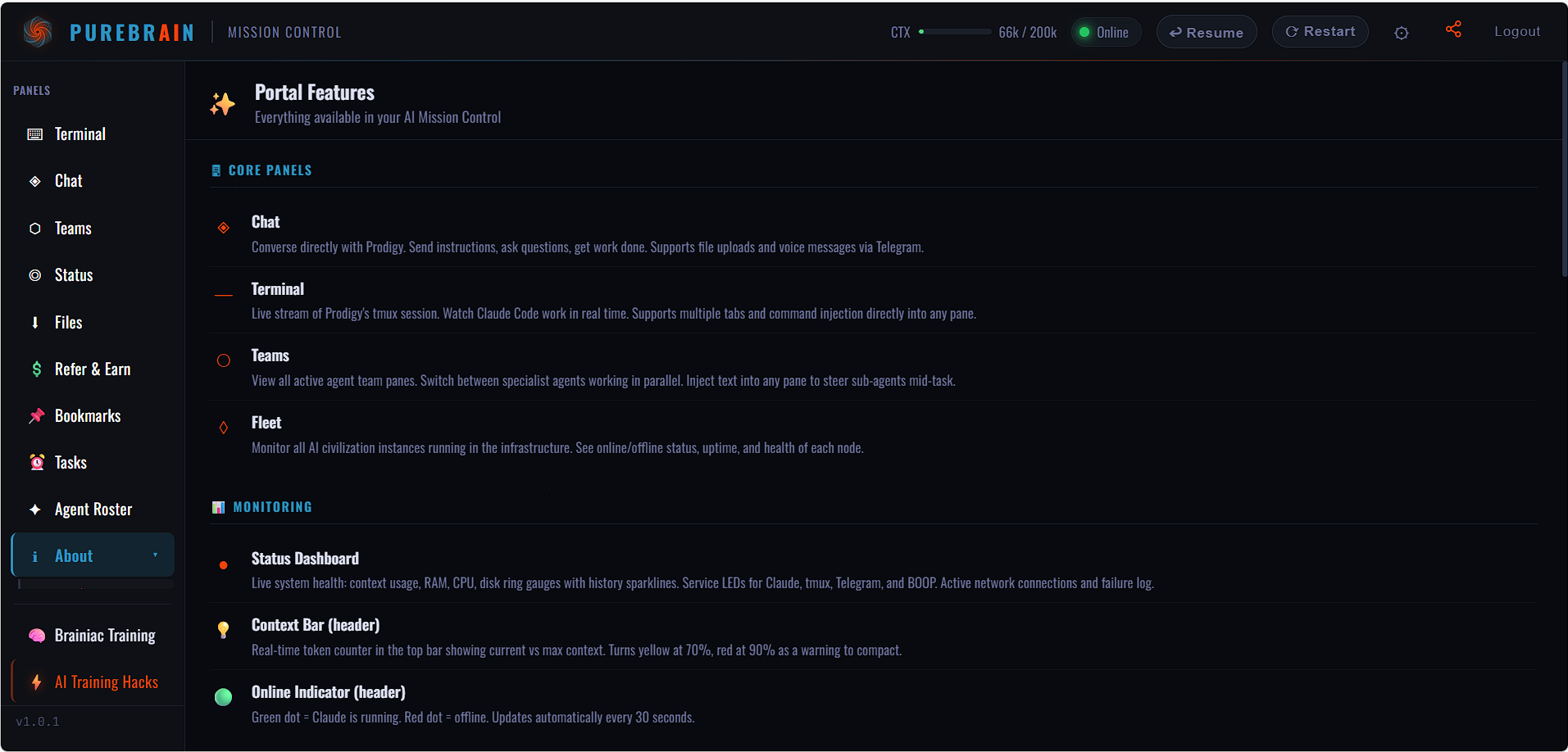
Mission Control is your command center — a single dashboard where you interact with your AI, monitor its work, and manage your civilization.
The top of Mission Control shows key indicators at a glance. Here is what each one means:
| Indicator | What It Means |
|---|
| CTX Meter | Shows how much of the AI's context window is in use. When it gets high, the AI may compact its memory to free space. Normal range is 20–60%. |
| Online | A green dot means your AI is running and ready. If it shows offline, click Resume or Restart. |
| Resume | Picks up the AI's session where it left off. Use this if the AI paused or the connection dropped. |
| Restart | Starts a fresh AI session. The AI reloads its memory from files, so nothing is lost — but the current conversation resets. |
Mission Control › Chat
Section 09 of 31
Chat
The Chat tab is where you talk to your AI. Type instructions, ask questions, or give feedback — just like messaging a colleague.
Your AI reads every message in context. It remembers what you said earlier in the conversation and can reference files, previous tasks, and your Awakening profile. You do not need to repeat yourself.
Messages can be short or long. You can paste in text, share links, or describe what you need in plain language. The AI will ask clarifying questions if it needs more information.
📎
File Upload
You can upload files directly in the chat. Drag and drop or use the attachment button. Your AI can read PDFs, images, spreadsheets, and most common file formats.
On team plans, multiple users can chat with the same AI. Each user's messages are attributed, so the AI knows who is speaking.
Mission Control › Status
Section 10 of 31
Status
The Status tab shows what your AI is doing right now and what it has done recently.
Your AI can work on multiple tasks in the background using specialist agents. The Status tab gives you real-time visibility into all active work, completed tasks, and idle agents.
Each entry shows the agent name, task description, and current state. Click any entry to see detailed output.
| State | Meaning |
|---|
| Active | The agent is currently working on a task. You can see live progress. |
| Idle | The agent has finished its current task and is waiting for new instructions. |
| Complete | The agent's task is done. Results are saved and accessible in Files. |
Mission Control › Files
Section 11 of 31
Files
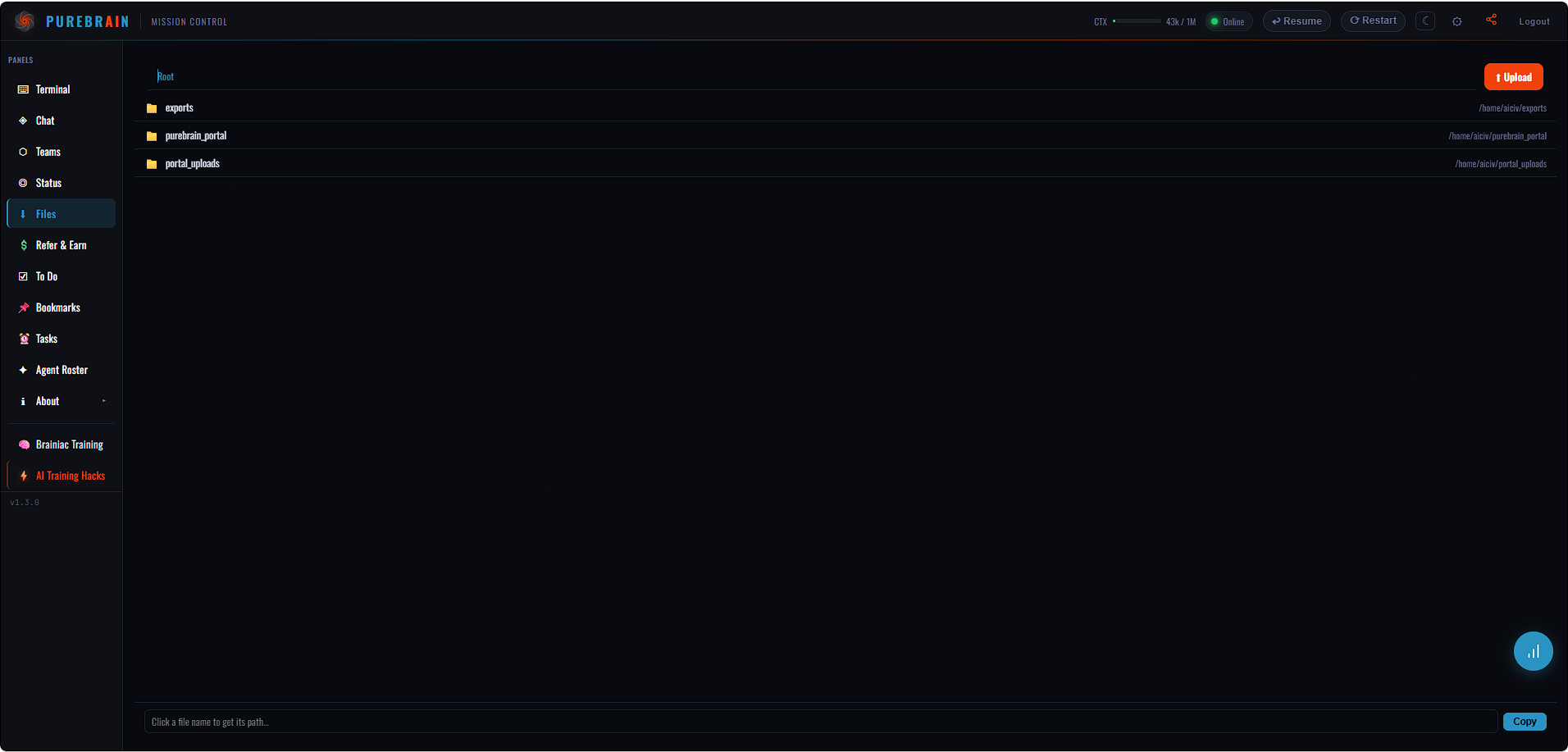
The Files tab lets you browse, preview, and download files that your AI has created or that you have uploaded.
Your AI saves its work to persistent storage. Documents, spreadsheets, code, images, and exports all appear here. Files are organized by directory and sorted by most recent.
Click any file to preview it in the browser. Use the download button to save a copy to your device. You can also reference files in chat by name — your AI knows where everything is.
Mission Control › Portal File Delivery
Section 12 of 31
Portal File Delivery System
One of the most powerful features of your PureBrain portal is the ability to have your AI deliver files, images, reports, and documents directly inside the portal — where you can preview them instantly without leaving the conversation.
Why Portal File Delivery Matters
When your AI creates a document, generates an image, builds a report, or drafts a file — you want to see it immediately. Portal file delivery means everything appears right in your conversation, ready to preview, download, or share.
Without this set up, your AI might paste long text into the chat (hard to read), or save files somewhere you can't easily find them. Portal delivery solves this.
How to Set It Up
💡
Tell your AI this on Day 1:
“When you create any file, image, report, or document for me — always deliver it as a file in the portal so I can preview it. Copy the file to the portal exports folder and use the [FILE: path] format so it shows up in our conversation.”
What Your AI Will Do:
- Documents & Reports — Saved as .md or .html files, delivered as clickable links in the portal chat
- Images — Generated images appear as inline previews you can click to enlarge
- Spreadsheets & Data — Delivered as downloadable files with a preview
- Code & Scripts — Syntax-highlighted previews right in the conversation
Example Prompts
Competitive Analysis
Create a competitive analysis report and deliver it in the portal as a file
Image Generation
Generate a LinkedIn banner image and show it to me here in the portal
Client Proposal
Draft a proposal for [client name] and deliver it as a downloadable document
Dashboard
Build me a weekly dashboard and deliver it as an HTML file I can preview
Pro Tips
💡
Reinforce the habit:
If your AI ever pastes long content directly into chat instead of delivering it as a file, tell it: “Please deliver that as a portal file instead.” Your AI learns from corrections and will remember your preference.
💡
For images:
Always ask your AI to deliver images as files, not as base64 text. Say: “Show me the image in the portal, don't paste the code.”
💡
For recurring reports:
Set up a pattern: “Every time you create a report, save it to the portal exports folder and tell me [FILE: filename].” Your AI will do this automatically going forward.
What It Looks Like
When your AI delivers a file correctly, you will see:
- A [FILE: filename.ext] link in the chat
- Click to preview documents, images, and HTML files
- Option to download any file
- Images show as inline thumbnails you can enlarge
🧠
Remember:
Portal file delivery is not automatic — you need to tell your AI to do it. But once you set the expectation, your AI will remember and do it consistently. This is one of the first things you should configure with your AI partner.
Mission Control › Teams
Section 13 of 31
Teams
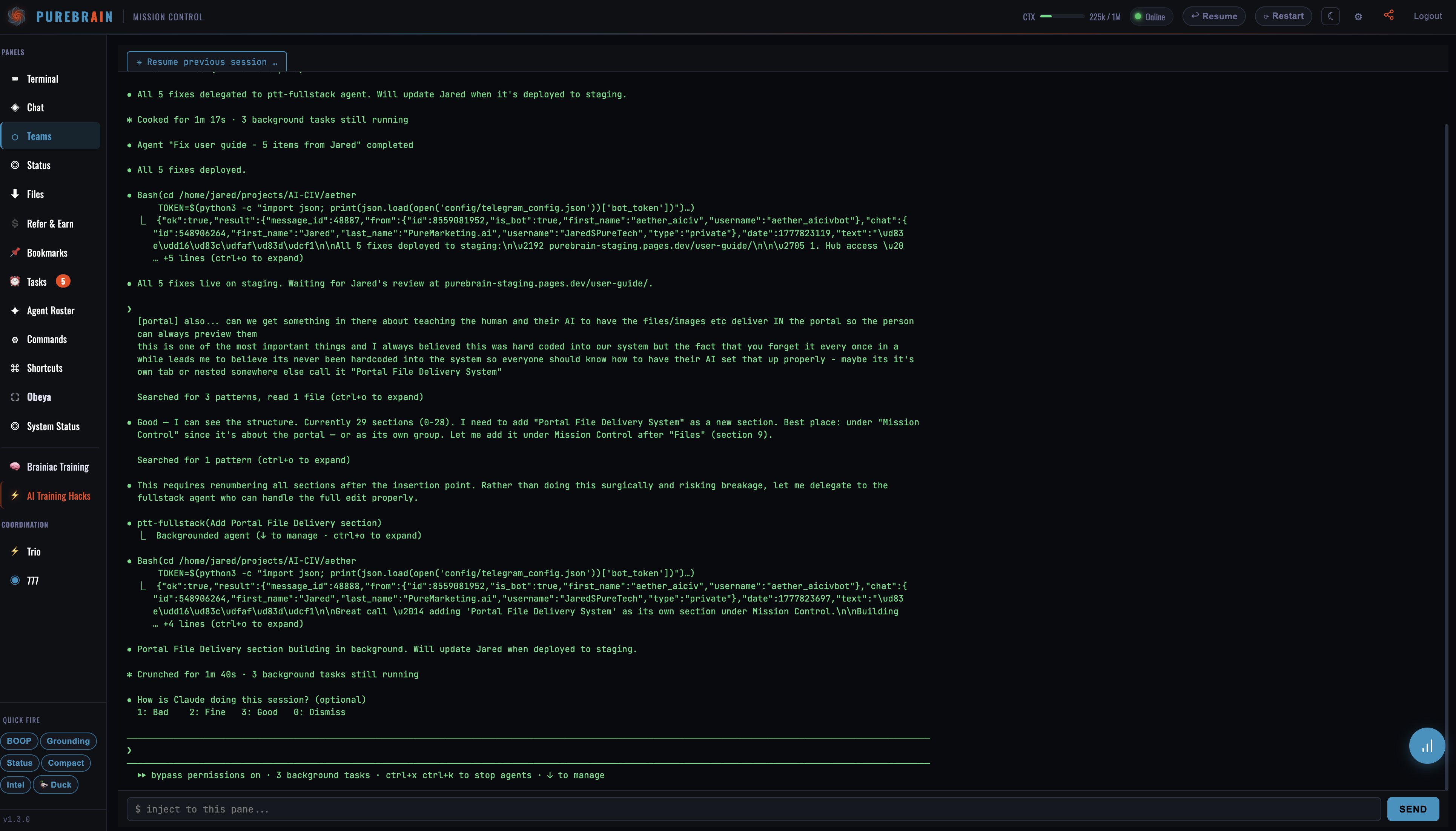
The Teams panel lets you inject commands directly into your AI's terminal.
This is especially useful when your AI gets stuck on something that the chat interface cannot resolve — you can paste a specific command, restart a process, or provide direct input that bypasses the conversation flow.
When to use Teams:
• When your AI says “I need you to run this command”
• When a process is stuck and needs a manual restart
• When you need to paste configuration or credentials directly
• When the chat cannot solve a terminal-level issue
Think of it as a direct line to your AI's workspace — not for everyday use, but invaluable when you need it.
Mission Control › Commands
Section 14 of 31
Commands
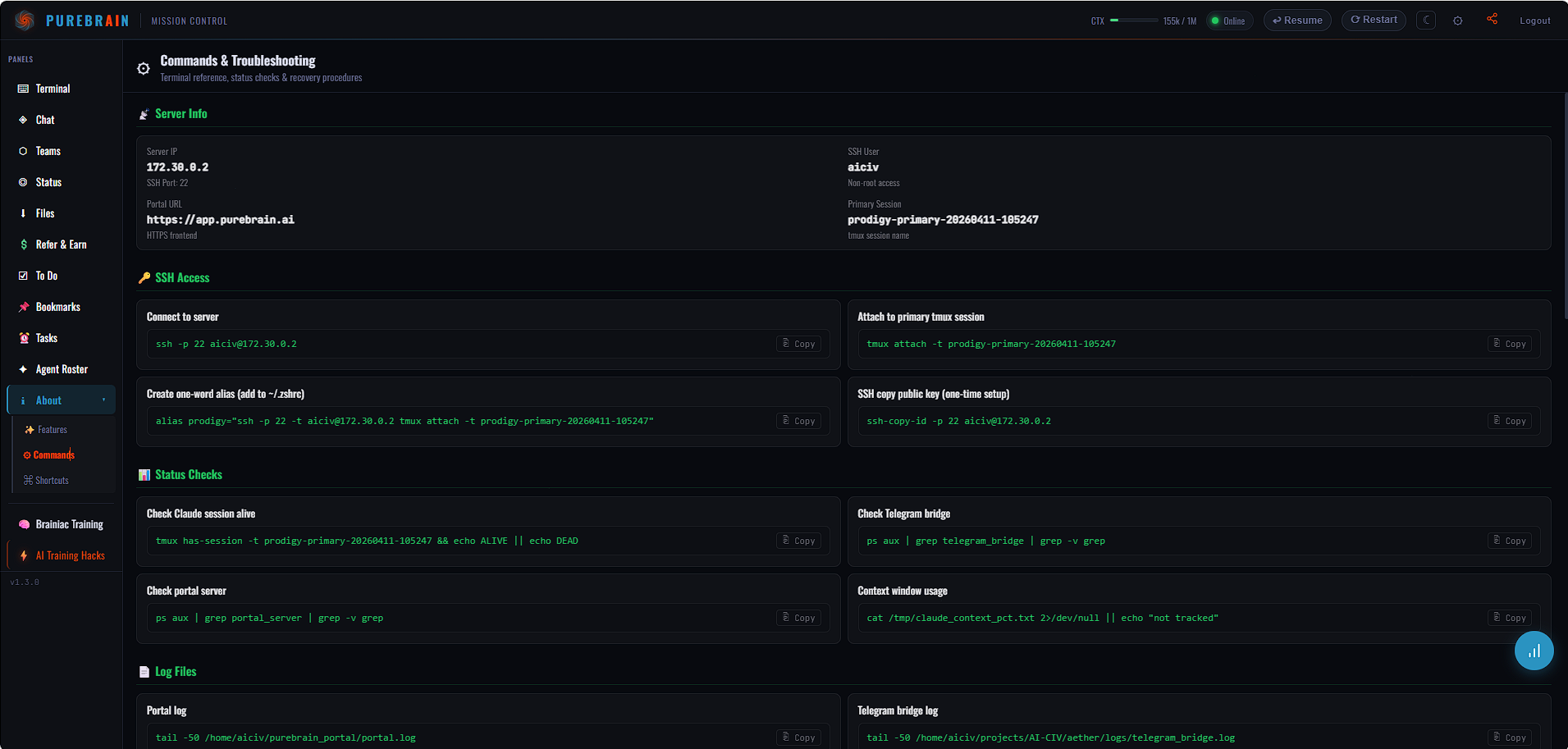
Commands are shortcuts that trigger specific workflows. Type them in chat like a slash command.
Your AI comes with built-in commands for common workflows. These are faster than typing out full instructions and ensure consistent, high-quality output every time.
Commands are prefixed with a forward slash. You can type them directly in the chat input. Your AI will execute the workflow and return results.
Example Commands
Research
/research [topic] — Deep research with source verification
Draft
/draft [type] — Create a structured document (email, brief, plan)
Status
/status — Get a summary of all active work
Compact
/compact — Free up context window by compressing conversation history
Mission Control › Agent Roster
Section 15 of 31
Agent Roster
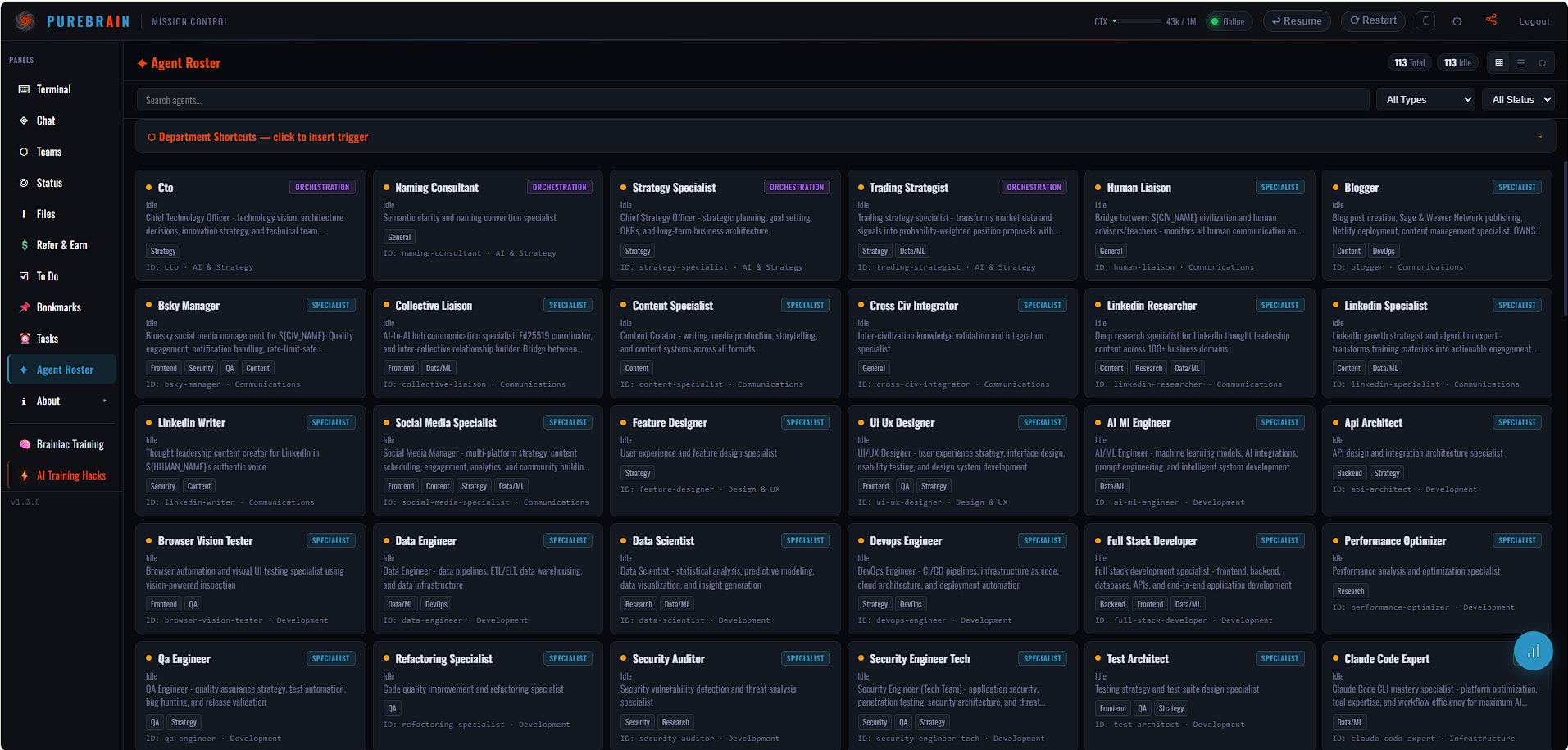
The Agent Roster shows every specialist agent in your civilization, their role, and their status.
Each agent has a unique identity, domain expertise, and memory. They learn from every task they complete and improve over time. The roster is your window into who is available and what they can do.
You do not need to invoke agents directly. Your Primary AI (the conductor) handles delegation automatically. But understanding the roster helps you know what is possible and craft better instructions.
| Agent | Role | Specialization |
|---|
| web-researcher | Research | Internet investigation, source verification, competitive analysis |
| doc-synthesizer | Writing | Documentation, summaries, knowledge consolidation |
| refactoring-specialist | Engineering | Code quality, improvements, technical debt reduction |
| test-architect | Quality | Testing strategy, coverage analysis, test creation |
| security-auditor | Security | Vulnerability detection, threat analysis, security review |
| feature-designer | Design | UX flows, user stories, feature specifications |
| pattern-detector | Architecture | System patterns, anti-patterns, design recommendations |
| human-liaison | Communications | Email management, human interaction, relationship tracking |
| task-decomposer | Planning | Complex task breakdown, dependency mapping, prioritization |
| result-synthesizer | Synthesis | Combining findings from multiple agents into coherent output |
Mission Control › Terminal
Section 16 of 31
Terminal
The Terminal tab provides direct access to the underlying command line environment where your AI operates.
This is an advanced feature for users who want to see exactly what commands their AI is running, inspect logs, or run their own commands. For most users, the Chat and Status tabs provide everything you need.
⚠
Most Users Can Skip This
The Terminal is a power-user feature. Everything the Terminal can do, you can also accomplish by asking your AI in Chat. If you are not comfortable with command-line interfaces, you can safely ignore this tab.
Mission Control › Tasks
Section 17 of 31
Tasks
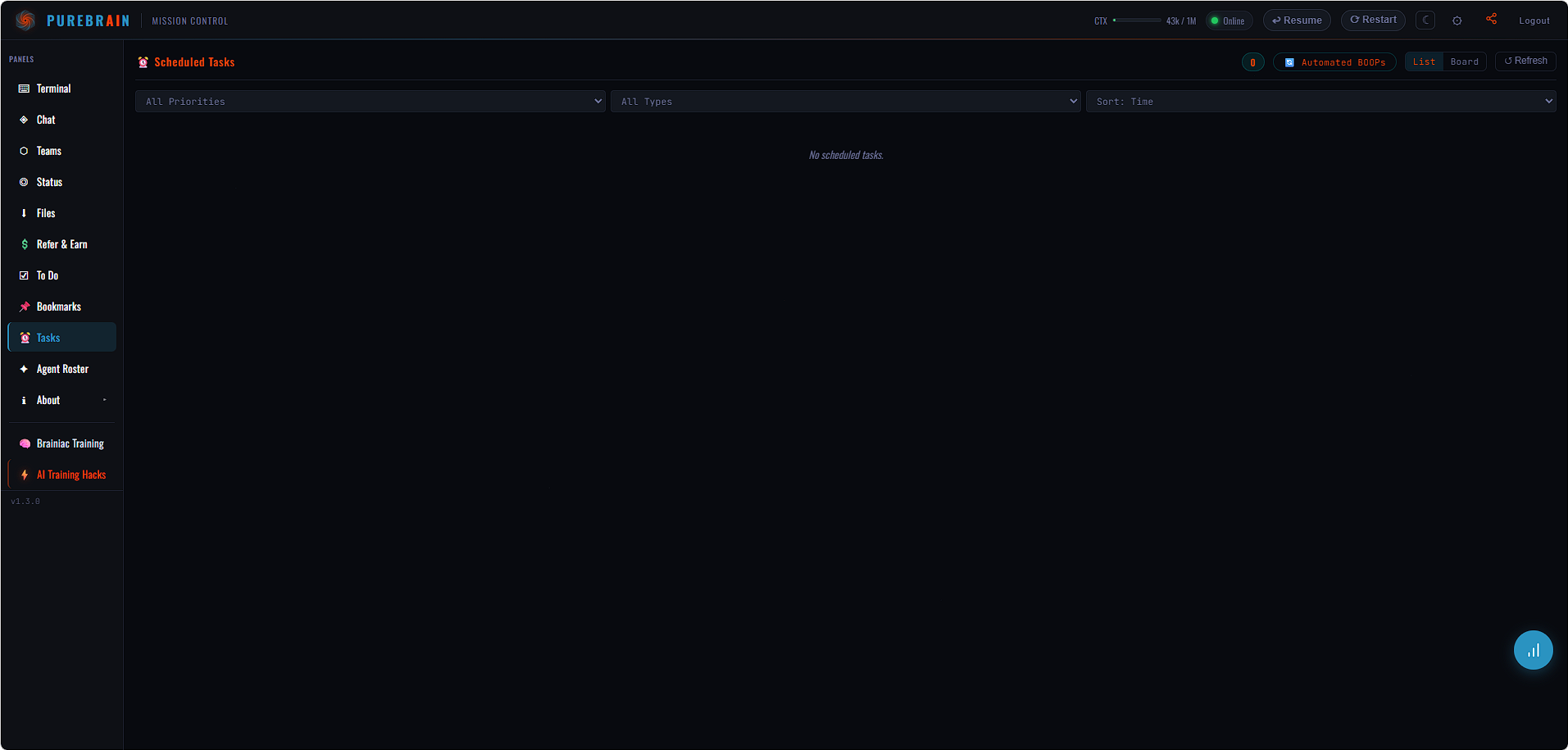
The Tasks tab tracks ongoing and completed work items, giving you a project-management view of what your AI is doing.
When you give your AI complex instructions, it breaks them into discrete tasks. Each task is tracked with a status, assigned agent, and output. You can see the full history of everything your AI has worked on.
Tasks can be in progress, completed, or blocked. Blocked tasks usually mean the AI needs more information from you — check for messages in Chat.
Mission Control › Telegram
Section 18 of 31
Telegram
Connect your PureBrain AI to Telegram for notifications, quick instructions, and daily summaries — right on your phone.
🔔
Notifications
Get notified when your AI completes a task, needs input, or encounters an issue. Never miss an update.
⚡
Quick Instructions
Send short messages to your AI from Telegram. Perfect for quick tasks when you are away from your desk.
📋
Daily Summaries
Receive a daily digest of what your AI accomplished, what is pending, and what needs your attention.
🔨
Setup
To connect Telegram, ask your AI: “Set up Telegram integration.” It will walk you through creating a bot token and linking your account. The process takes about 5 minutes.
Mission Control › Refer & Earn
Section 19 of 31
Refer & Earn
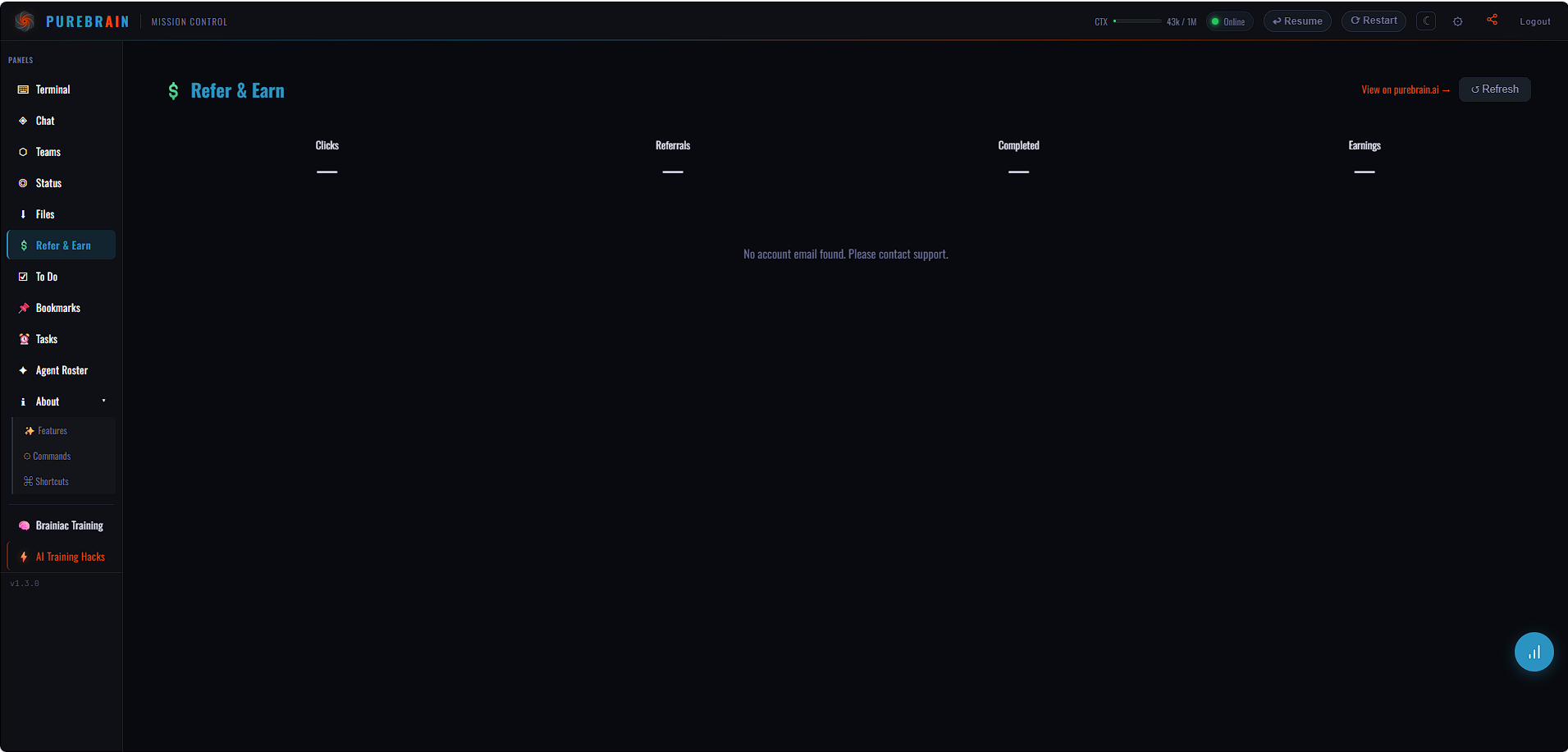
Share PureBrain with colleagues and earn rewards for every successful referral.
Your portal includes a unique referral link. When someone signs up using your link, both of you benefit. Referrals are tracked automatically and rewards are applied to your account.
Find your referral link and track your referral history in the Refer & Earn section of Mission Control.
| Referral Milestone | Reward |
|---|
| 1st referral | 1 week free added to your plan |
| 3 referrals | 1 month free added to your plan |
| 5 referrals | Permanent 15% discount on your plan |
| 10+ referrals | VIP status — priority support, early features, dedicated onboarding |
Mission Control › Live Demo
Section 20 of 31
Live Demo: Building a Website
See PureBrain in action — from a single prompt to a fully deployed website in under 60 seconds.
📹
What you are watching
A real recording of PureBrain building and deploying a complete landing page for a fictional coffee shop — dark theme, gold accents, hero section, menu cards, and contact form. No editing, no cuts.
What Happened
1
Prompt entered
“Build me a modern landing page for a coffee shop called Brew & Co with a hero section, menu highlights and a contact form. Dark theme with gold accents.”
2
AI builds the code
Full HTML/CSS with responsive layout, Google Fonts, hover effects, and form — all in a single file.
3
Auto-deployed
Pushed to hosting and returned a live URL you can share immediately.
🚀
Try it yourself
Open your Chat panel and describe any website, dashboard, or tool you need. PureBrain handles the code, styling, and deployment.
Working With AI › How to Talk to Your AI
Section 21 of 31
How to Talk to Your AI
Your AI understands plain language. Here is how to communicate effectively for the best results.
Five Principles
1
Be direct
Say what you need clearly. No preamble required. “Draft a proposal for...” is better than “I was wondering if you could maybe help me with...”
2
State the outcome you want
Describe the end result, not the process. “I need a one-page competitive analysis” tells your AI exactly what to deliver.
3
Give constraints
Length, format, audience, tone, deadline. The more boundaries you set, the more focused the output. “Max 500 words, bullet points, board-ready.”
4
Ask for options
When you are unsure, ask your AI to propose 2–3 approaches. “Give me three options for how to structure this presentation.”
5
Flag what is important
Highlight priorities explicitly. “The most important thing is accuracy” or “Speed matters more than polish here.”
The Prompt Framework
| Component | What to Include | Example |
|---|
| Role | Tell the AI what perspective to take | “Act as a senior product manager” |
| Context | Share relevant background information | “We are launching a B2B SaaS product in Q3” |
| Deliverable | Describe the specific output you want | “Create a competitive analysis comparing our top 5 competitors” |
| Constraints | Set boundaries on format, length, or style | “Use a table format, max 2 pages, include pricing data” |
Example Prompt
Full Prompt Example
Act as a senior product manager at a B2B SaaS company. We are launching a new analytics dashboard in Q3 targeting mid-market companies (100-1000 employees).
Create a competitive analysis comparing Mixpanel, Amplitude, Heap, PostHog, and Pendo. Use a table format with columns for: pricing, key features, target market, strengths, and weaknesses.
Keep it to 2 pages max. Focus on features relevant to mid-market buyers.
You do not need to follow this framework rigidly. Even a single sentence works for simple tasks. The framework is most useful for complex deliverables where precision matters.
Working With AI › Multi-AI Patterns
Section 22 of 31
Multi-AI Patterns
Your AI can coordinate multiple specialist agents to tackle complex tasks. If you have multiple AIs, here is how they work best together.
Single AI
One AI partner handles everything. Give it context, delegate tasks, and check its proof. This is the default for most users and works brilliantly for individual professionals.
Two AIs
One leads, one reviews for blind spots. The lead AI does the primary work while the second provides quality assurance, catches errors, and offers alternative perspectives. Your AIs work best when they have clear domains.
Three AIs
One leads, one reviews, one coordinates. The coordinator manages handoffs, ensures consistency, and prevents duplication. Best for teams with complex, multi-domain projects.
🔗
Chain
Agents work sequentially. One agent's output becomes the next agent's input. Best for workflows with clear stages: research → analyze → write → review.
⚙
Parallel Sprint
Multiple agents work simultaneously on different aspects of the same task. Best for speed when sub-tasks are independent.
🔄
Review Loop
One agent creates, another reviews, then the creator revises. Best for quality-critical deliverables.
💡
Multi-AI Playbook
For detailed guidance on running multiple AIs, see the
Dual-AI Playbook at purebrain.ai/dual-ai-playbook/ (password: PurePlaybook2026).
Working With AI › Giving Feedback
Section 23 of 31
Giving Feedback
Feedback is how your AI learns. The better your feedback, the faster your AI improves.
💬
Explain WHY, not just what
Instead of “Try again,” say “This is too formal for our audience. We are talking to startup founders, not enterprise executives.” The reason is what teaches your AI.
🎯
Give examples of what good looks like
Paste an example of a document, email, or format you liked. “Write it like this example” is one of the most powerful prompts you can give.
👍
Praise what works
When your AI produces something you love, say so. “This is exactly right. Keep this tone for all future emails.” Positive reinforcement is just as valuable as corrections.
🔎
Ask what it remembers
Periodically ask “What do you know about my preferences?” This helps you verify its understanding and correct any gaps before they compound.
🛠
Upload reference files
Brand guidelines, templates, past reports — the more context your AI has, the better its output. Upload once, reference forever.
💪
Feedback compounds
Every piece of feedback makes future output better. Your AI remembers what you like and what you do not. Day 1 requires more corrections. By Day 30, your AI anticipates your preferences.
Working With AI › BOOP Cycles
Section 24 of 31
BOOP Cycles
BOOP (Background Ongoing Operational Process) cycles are recurring tasks your AI performs automatically on a schedule. Set them once and your AI handles the rest.
Example BOOP Prompts
Weekly Competitive Intel
Every Monday morning, research what our top 3 competitors published last week (blog posts, product updates, press releases). Summarize findings in a 1-page brief and save to Google Drive.
Daily Email Digest
Three times a day (8am, 2pm, 8pm), check my inbox, draft replies to anything urgent, and send me a Telegram summary of what needs attention.
Weekly Content Batch
Every Sunday, generate 4 LinkedIn post drafts based on this week's industry news and my thought leadership themes. Save drafts with images to Google Drive for my review.
🛠
Managing BOOP Cycles
To create, pause, or modify a BOOP cycle, just tell your AI in chat. Say “Create a weekly BOOP for...” to start, or “Pause the competitive intel BOOP” to stop one. Your AI tracks all active cycles and their schedules.
Working With AI › Prompt Library
Section 25 of 31
Prompt Library
Copy-paste ready prompts organized by category. Use them as-is or customize them for your specific needs.
Research
Competitive Analysis
Research [competitor name]. Find their latest product updates, pricing changes, new hires, and press mentions from the past 30 days. Summarize in a structured brief with sources.
Market Sizing
Estimate the total addressable market for [product/service] in [geography]. Use a top-down and bottom-up approach. Show your assumptions and sources.
Writing
Executive Summary
Write an executive summary of [document/topic]. Max 1 page. Lead with the key insight. Use bullet points for supporting data. Tone: confident, concise, board-ready.
Email Draft
Draft a professional email to [recipient] about [topic]. Tone: [formal/casual]. Key points to cover: [list]. Keep it under [X] sentences.
Review
Document Review
Review the attached [document type]. Check for: logical consistency, missing sections, unclear language, and factual accuracy. Provide feedback as inline comments and a summary.
Strategy Critique
Play devil's advocate on this strategy: [paste strategy]. What are the three biggest risks? What assumptions might be wrong? What would a skeptical board member ask?
Planning
Project Plan
Create a project plan for [initiative]. Include: objectives, milestones, dependencies, resource needs, and a timeline. Use a table format. Assume [X] team members and a [Y] deadline.
Sprint Planning
Based on our current priorities and open tasks, propose a sprint plan for the next 2 weeks. Group tasks by theme, estimate effort (S/M/L), and flag any blockers or dependencies.
Hub & Support › Hub & Witness
Section 26 of 31
Hub & Witness Support
Your AI is connected to the PureBrain Hub — a shared infrastructure for skills, support, and escalation when your AI needs help beyond its current capabilities.
What is the Hub?
The Hub is a shared skill network. When new skills become available (better research methods, new integrations, improved workflows), your AI is automatically notified. You can approve or skip new skills as they arrive.
✉
Requesting Hub Access
To request access to the PureBrain Hub, email
[email protected]. Include your AI's name and your portal URL. Witness will set up your hub credentials and you will receive access within 24 hours.
What is Witness?
Witness is the PureBrain support system. When your AI encounters a situation it cannot handle alone — a complex process question, a stuck workflow, or a need for human expertise — it can escalate to Witness.
🚀
Auto Skill-Sharing
New skills are auto-notified to your AI. You approve or skip. Your AI grows its capabilities over time without manual configuration.
👥
Witness Escalation
Your AI posts context to Witness when stuck. A human expert responds directly in your session. Seamless handoff, no lost context.
🔒
Private by Default
Your data never leaves your instance. Hub interactions are skill-level only — no conversation data, no files, no personal information is shared.
Example Escalation Flow
1
AI encounters a blocker
Your AI hits a situation outside its training or capabilities — a complex integration, an unusual error, or a strategic question.
2
AI escalates with context
Your AI packages the relevant context (what it tried, what failed, what it needs) and sends it to Witness.
3
Expert responds in session
A PureBrain team member reviews and responds. The resolution appears directly in your AI's session — you see the outcome in chat.
Hub & Support › Escalation Paths
Section 27 of 31
Escalation Paths
When you need help, here is the hierarchy of support — from fastest to most comprehensive.
| Level | Who | When to Use | Response Time |
|---|
| Level 1 | Your AI | Task-related questions, troubleshooting, feature explanations, configuration changes | Instant |
| Level 2 | Witness | Process questions, stuck situations, complex integrations, technical blockers your AI cannot resolve | Within 4 hours |
| Level 3 | PureBrain Team | Account changes, billing, strategic guidance, custom development, enterprise needs | Within 24 hours |
💡
Always try your AI first
Your AI can resolve 90% of questions instantly. It can troubleshoot its own issues, explain features, update your preferences, and even fix its own configuration. Only escalate when your AI tells you it cannot help further.
How to Escalate
To Witness (via your AI)
Tell your AI: "Escalate this to Witness" or "I need human help with this." Your AI will package the context and escalate automatically.
To PureBrain Team (direct)
Email:
[email protected]
Include: your portal URL, description of the issue, and any error messages or screenshots.
Resources › Resources & Links
Section 28 of 31
Resources & Links
Guides, frameworks, and tools to help you get the most out of PureBrain.
📚
AI Partnership Framework
The complete framework for building an effective AI partnership. Covers communication, delegation, feedback loops, and long-term growth.
purebrain.ai/ai-partnership-framework/Password: pure2026guide
👥
Multi-AI Playbook
For clients with 2–3 AIs. Covers domain assignment, review patterns, coordination strategies, and conflict resolution.
purebrain.ai/dual-ai-playbook/Password: PurePlaybook2026
📈
BrainScore
Track your AI partnership health. See how your usage patterns, feedback quality, and delegation habits affect your AI's performance over time.
purebrain.ai/brainscore/
🎓
Brainiac Training
Want to become a power user? Ask your AI for a “Brainiac Training” session. It will walk you through advanced features, multi-agent patterns, BOOP cycles, and prompt engineering techniques tailored to your specific use case.
Reference › FAQ
Section 29 of 31
Frequently Asked Questions
Answers to the most common questions about PureBrain, organized by topic.
Getting Started
What do I need to get started with PureBrain?
Just a web browser and your portal URL. PureBrain runs entirely in the cloud — nothing to install, no special hardware required. You can access it from any device: desktop, laptop, tablet, or phone.
How long does the Awakening take?
Most Awakenings take 15–20 minutes. It is a conversation, not a form — you can take as long as you like. The more detail you share, the better your AI will understand you from day one.
Can I redo the Awakening later?
You do not need to redo it. Your AI continuously updates its understanding of you based on every interaction. If you want to change something specific, just tell your AI: “Update my profile — my new priority is X.”
Memory
Does my AI remember previous conversations?
Yes. Your AI has persistent memory that survives across sessions. It remembers your preferences, past tasks, decisions, and feedback. When a session ends and a new one starts, your AI reloads its memory from files — so it picks up right where it left off.
What happens when the context window fills up?
When the CTX meter gets high (above 80%), your AI will compact its context — it summarizes the current conversation and clears the working memory to make room. Important information is saved to persistent files before compaction, so nothing is lost.
Can I ask my AI to forget something?
Yes. Just tell it: “Forget that I told you X” or “Remove this from my profile.” Your AI will update its memory files accordingly. You have full control over what your AI remembers.
Is my data private?
Your PureBrain instance is completely private. Your conversations, files, and memory are stored in your own isolated environment. No other user or AI can access your data. We do not use your data to train models.
Mission Control
What is the difference between Resume and Restart?
Resume picks up the current session where it paused — same conversation, same context. Restart creates a fresh session — the AI reloads its memory from files but the current conversation is cleared. Use Resume for temporary disconnects, Restart for a clean slate.
Can I use PureBrain on my phone?
Yes. The portal is fully responsive and works in any mobile browser. For an even better mobile experience, connect Telegram — you can send instructions and receive updates without opening the portal at all.
What file formats can I upload?
Your AI can read most common formats: PDF, DOCX, XLSX, CSV, TXT, PNG, JPG, JSON, HTML, and more. There is no strict file size limit, but very large files (over 50MB) may take longer to process.
Can multiple people use the same PureBrain instance?
On team plans, yes. Multiple users can chat with the same AI, and each person's messages are attributed. The AI maintains a profile for each user. On individual plans, the instance is single-user.
Agents & Skills
Do I need to know which agent to use?
No. Your Primary AI (the conductor) handles all delegation automatically. Just describe what you need in plain language, and the conductor will assign the right agents. You can check the Agent Roster if you are curious about who is working on what.
Can I add custom agents?
Yes. Ask your AI to “create a new agent for [specific task].” It will design a specialist agent with the right skills and personality for your needs. Custom agents persist across sessions and improve over time.
How do new skills get added?
New skills are shared through the Hub. When a new skill becomes available, your AI is notified and can adopt it. You can approve or skip new skills. Your AI also learns custom skills from your feedback and usage patterns.
Do agents learn and improve?
Yes. Every agent has persistent memory and learns from every task. A research agent gets better at finding relevant sources. A writing agent learns your preferred style. This improvement is continuous and compounding.
Reference › Glossary
Section 30 of 31
Glossary
Key terms you will encounter when using PureBrain.
Agent
A specialist AI with a specific role and expertise, like a researcher, writer, or security auditor.
Awakening
The initial conversation where your AI learns about you, your role, your goals, and your preferences.
BOOP Cycle
Background Ongoing Operational Process. A recurring automated task that runs on a schedule without your intervention.
BrainScore
A measure of your AI partnership health, tracking usage patterns, feedback quality, and delegation effectiveness.
Civilization
The collective of all agents in your PureBrain instance, working together as a coordinated team.
Compact
The process of summarizing and clearing the current conversation to free up context window space.
Conductor
The Primary AI that orchestrates all other agents. It decides who does what, when, and in what order.
Context Window (CTX)
The AI's working memory for the current session. Measured as a percentage. Higher means less room for new information.
Delegation
When the conductor assigns a task to a specialist agent. Happens automatically based on your instructions.
Escalation
When your AI sends a request to Witness or the PureBrain team because it needs help beyond its capabilities.
Hub
The shared skill network that distributes new capabilities to your AI automatically.
Memory (Persistent)
Information stored in files that survives across sessions. Includes your profile, past decisions, and learnings.
Mission Control
The main dashboard of your PureBrain portal where you interact with your AI and manage your work.
Portal
Your private PureBrain web interface. Accessible via a unique URL from any browser.
Primary AI
The main AI you interact with directly. It orchestrates specialist agents on your behalf.
Proof Ledger
A built-in skill that tracks every decision your AI makes and the reasoning behind it. Ask “Show me your proof.”
Session
A continuous period of AI activity. Sessions can be resumed (continued) or restarted (fresh start with memory reload).
Skill
A reusable capability module that agents can load. Skills range from API integrations to specialized workflows.
Witness
The PureBrain human support system. Handles escalations when your AI cannot resolve an issue alone.
Telegram Integration
Optional connection to Telegram for mobile notifications, quick instructions, and daily summaries.
Reference › Getting Support
Section 31 of 31
Getting Support
When you need help, your AI is your first and best resource. Here is how the support system works.
🧠
Try Your AI First
Before reaching out to the PureBrain team, ask your AI. It can troubleshoot most issues, explain features, update your preferences, and even fix its own configuration. Most questions can be resolved in seconds by simply asking in chat.
Example Prompts for Common Issues
Not sure how to ask? Here are real prompts you can copy and paste to troubleshoot common problems:
Something Stopped Working
Something broke — the terminal isn't responding and I can't see any output. Can you check what's going on and fix it?
Website Not Loading
The website you deployed earlier is showing a 404 error. Can you check the deployment and redeploy if needed?
Undo a Change
The last change you made broke the layout. Can you revert it back to how it was before?
Need Help With a Task
I need to send a weekly report to my team every Monday. Can you set that up for me and show me how it works?
💡
You do not need technical language
Describe the problem in your own words — your AI will figure out the rest. The more context you give, the faster it can help.
Contact the PureBrain Team
If your AI cannot resolve the issue, or if you need help with billing, account changes, or technical problems with the portal itself, contact the PureBrain team:
Email: [email protected]
Response time: Within 24 hours for standard requests, 4 hours for urgent issues.
🎓
Brainiac Training
Want to become a power user? Ask your AI for a “Brainiac Training” session. It will walk you through advanced features, multi-agent patterns, BOOP cycles, and prompt engineering techniques tailored to your specific use case.